

How to register for election work
The full registration process can take up to 30 minutes. We will ask for your:
- contact details
- confirmation of your eligibility
- diversity information
- work or volunteer experience if you have any (but experience is not necessary).
Let's get started!
- To register, click the 'Register to work at elections' button below.
Register to work at elections - There is a list of vacant positions. Select the 'Election Staff' link. This link will take you to the 'Vacancy Details' page.
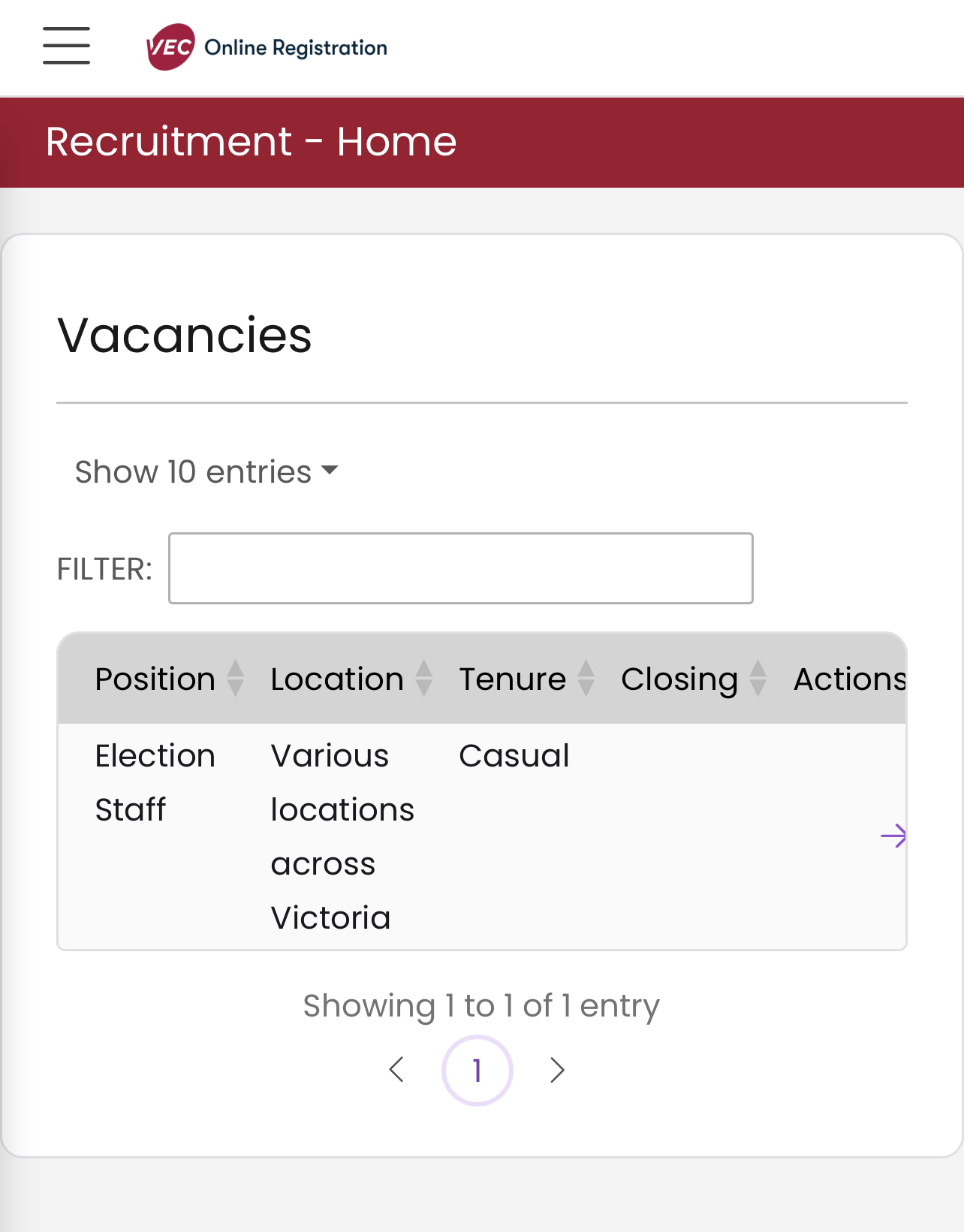
- Select the 'Apply' button at the bottom of the page. This will take you to the 'VEC Online Registration' page.
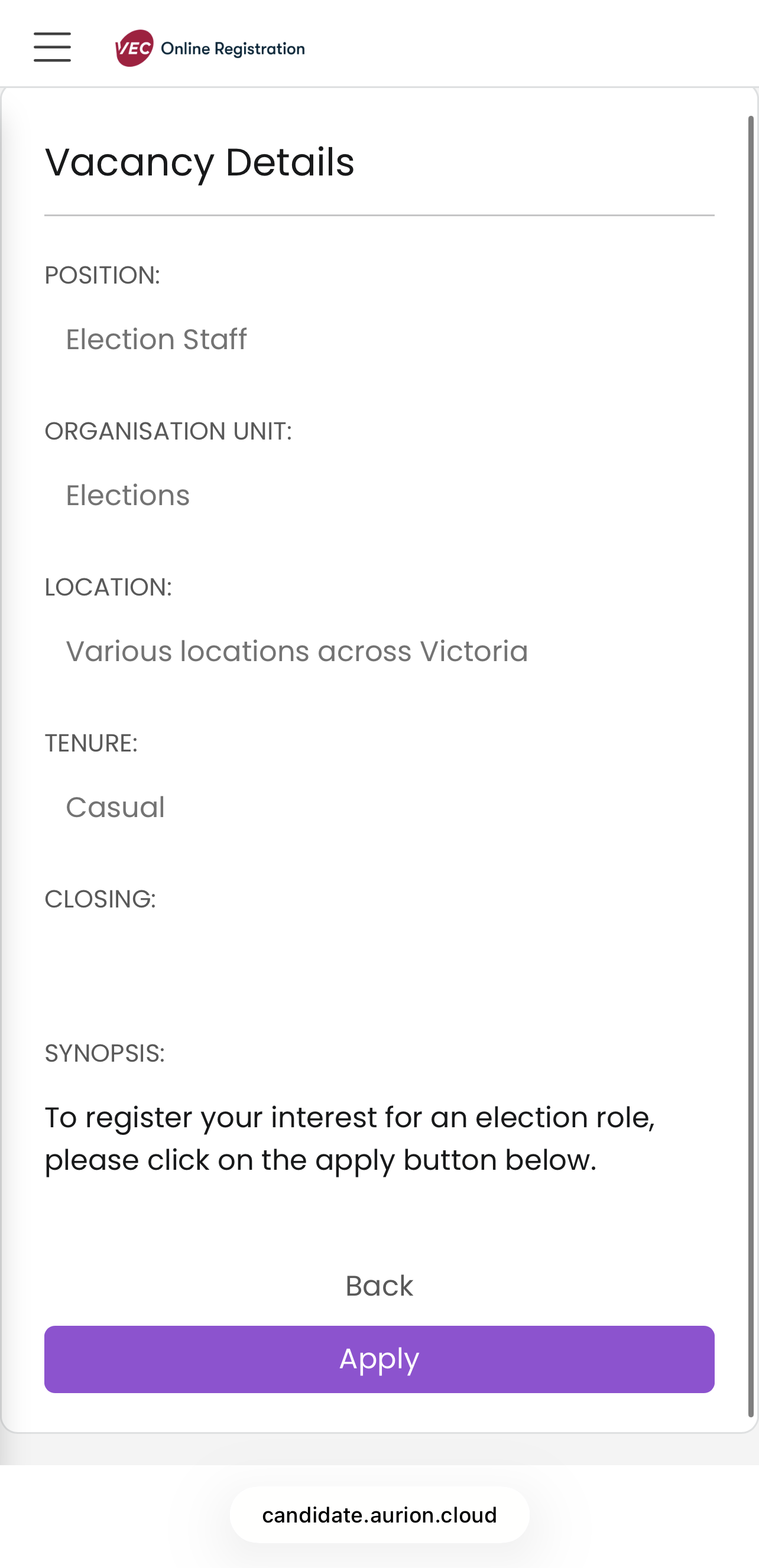
- Tick the 'I'm not a robot reCAPTCHA and then select the 'Register for recruitment' button. You do not need to enter an email address or password.
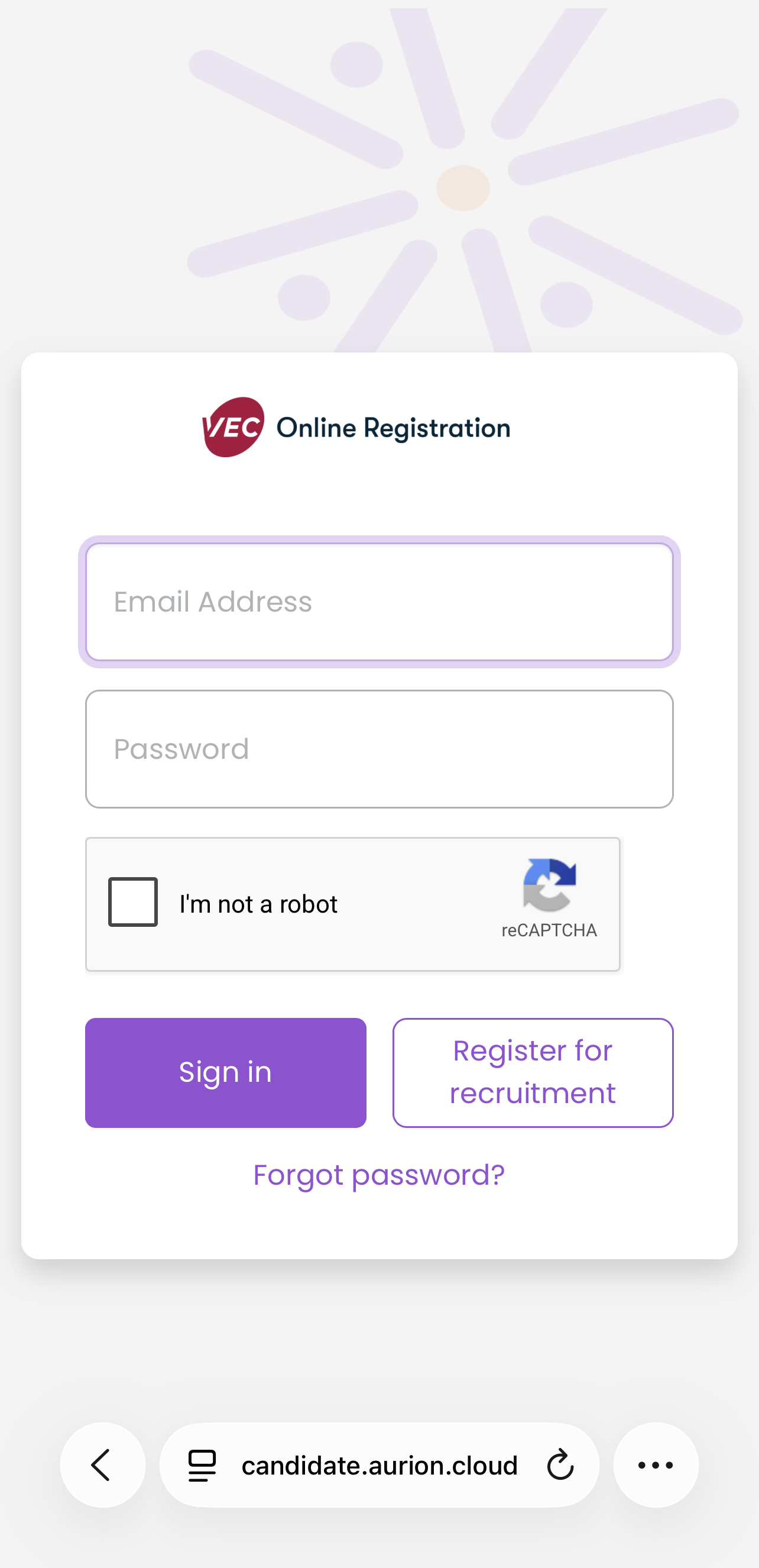
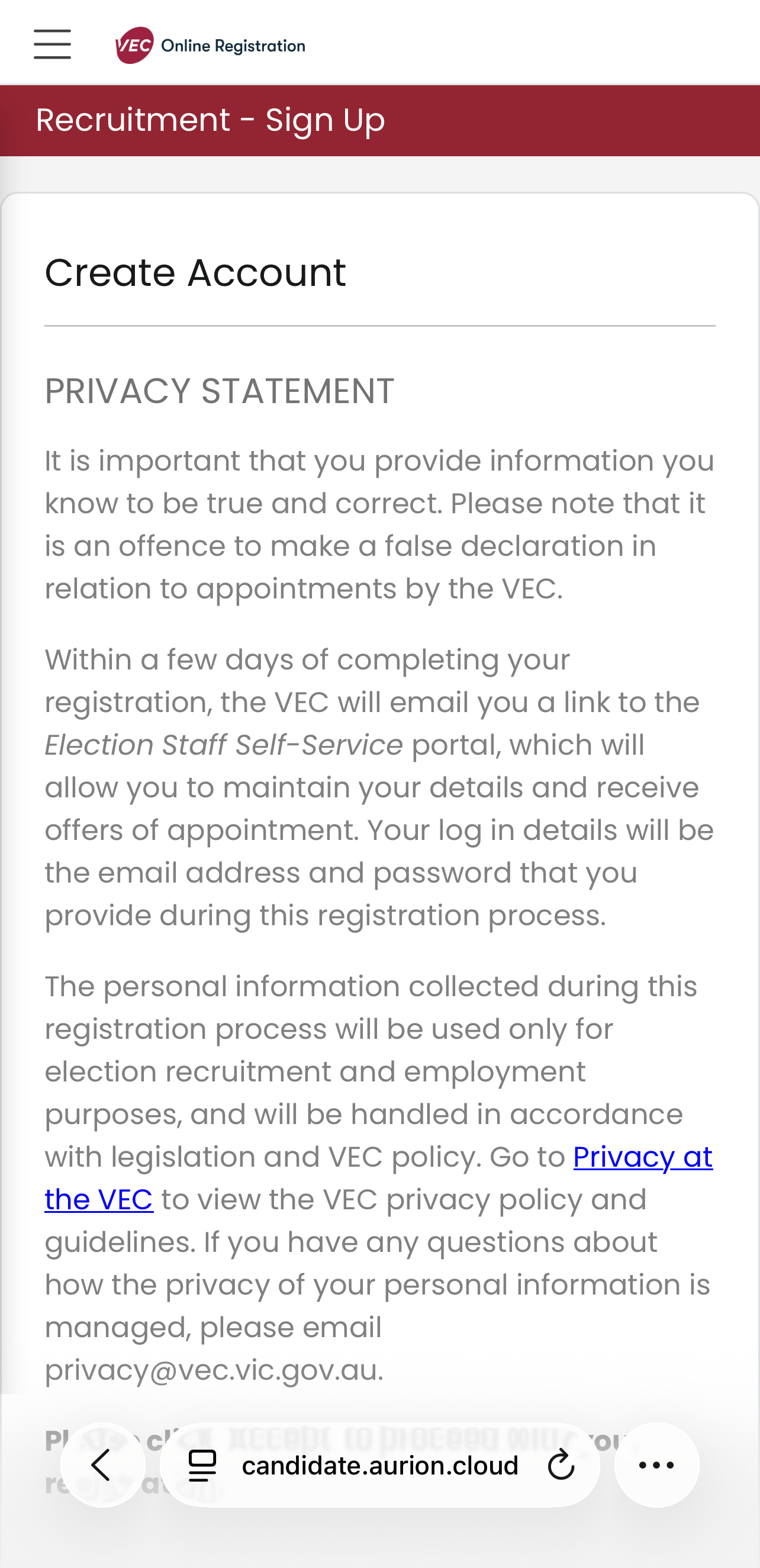
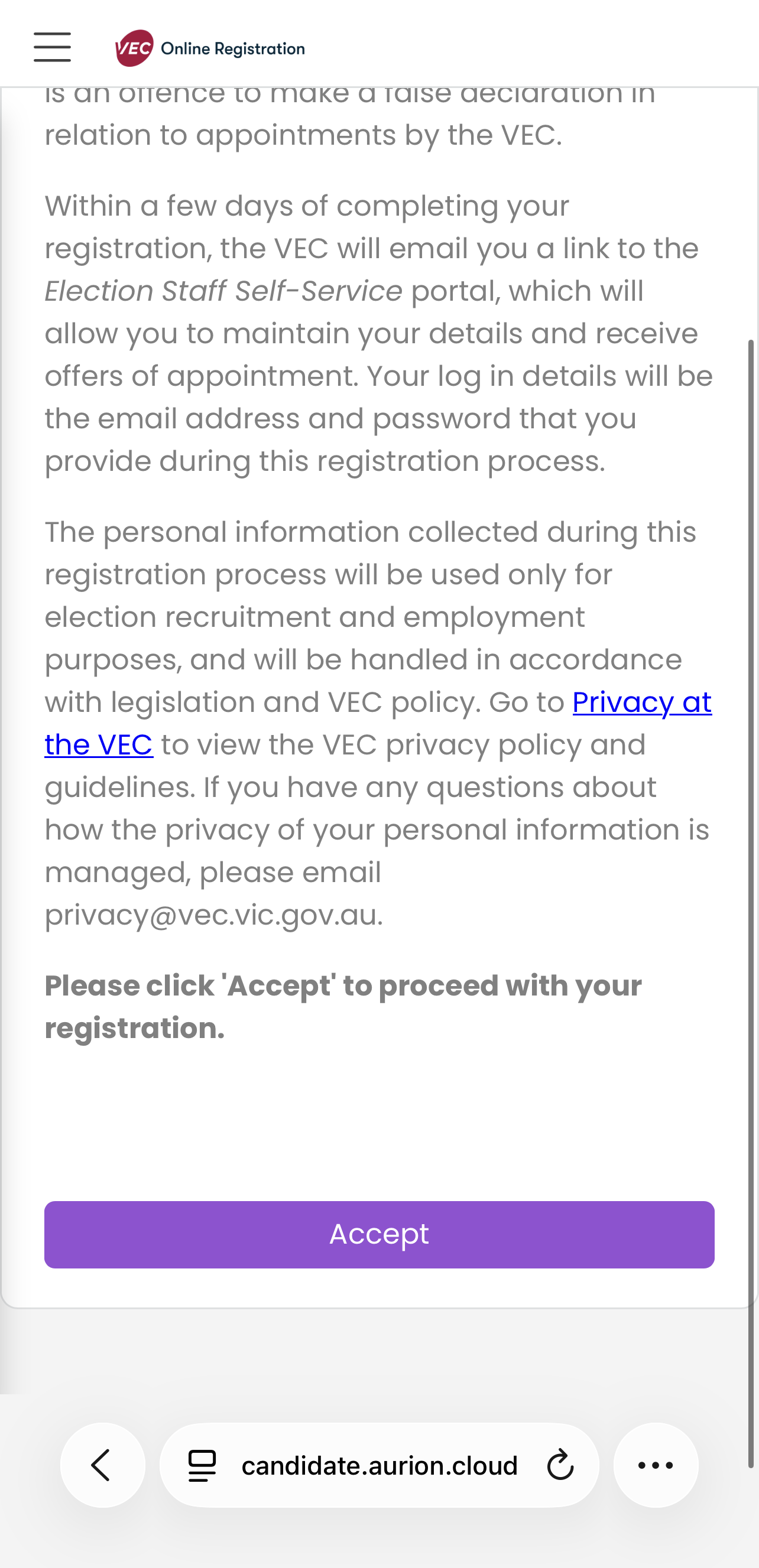
- Read the privacy statement.
- Select the 'Accept' button at the bottom of the page.
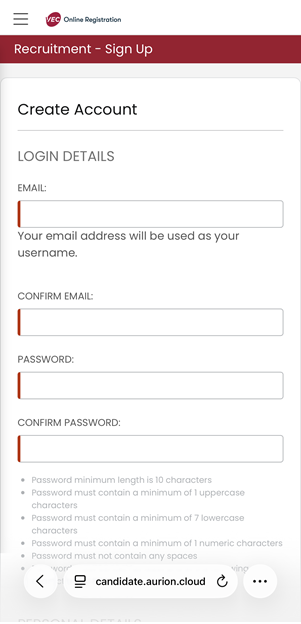
- The ‘Create Account’ screen will appear. Enter your email address and create a password. Your password must contain:
- 10 characters or more
- no spaces
- one capital (upper case) letter
- one number (1, 2, 3, 4, 5, 6, 7, 8, 9, 0)
- one symbol (! @ # $ % ^ & * ( ) only)
- 7 lower case letters.
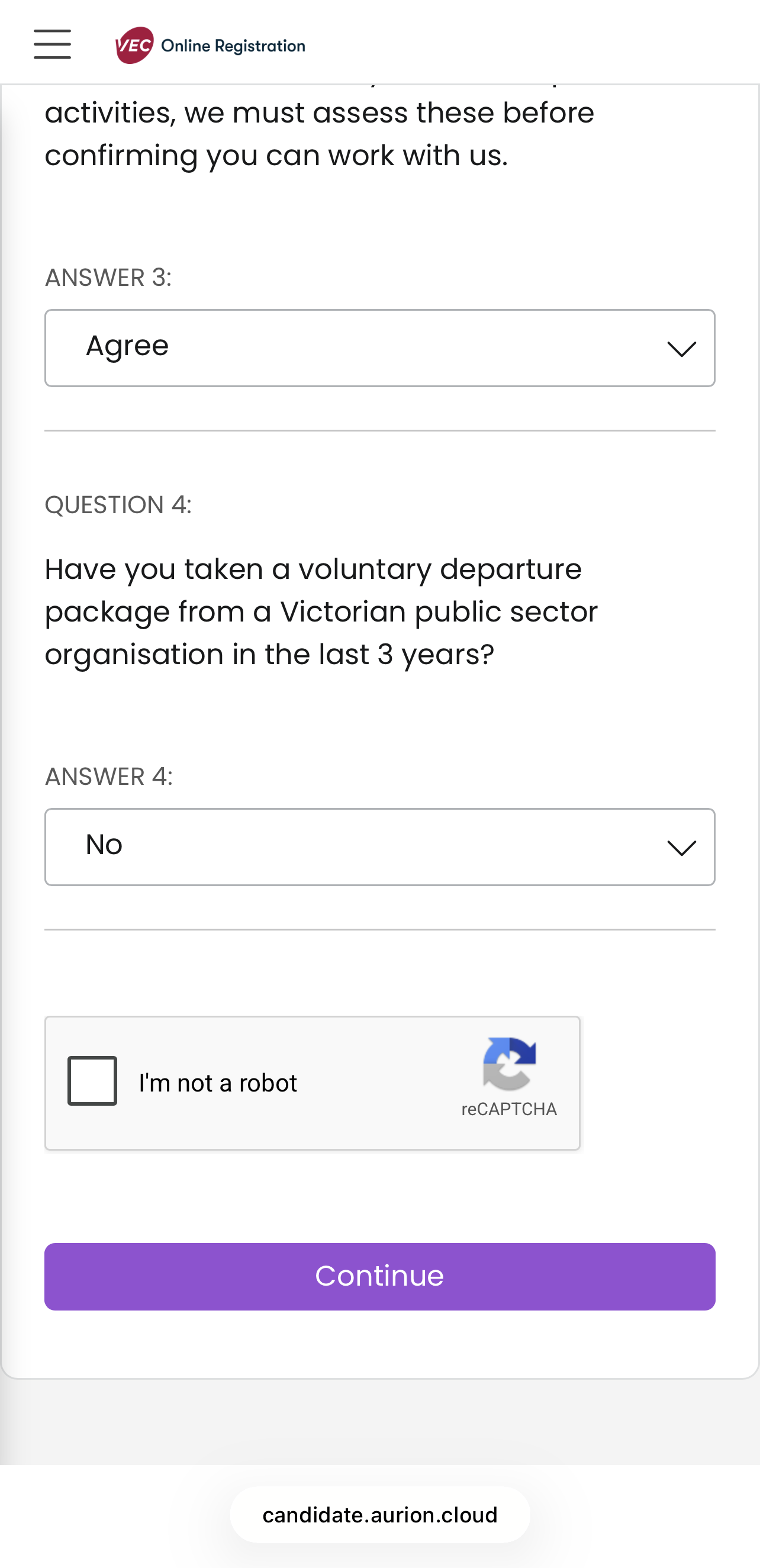
- Enter all the details in the 'Personal Details' and 'Eligibility' sections.
- Complete the reCAPTCHA at the bottom of the page by selecting 'I'm not a robot'.
- Select 'Continue' at the bottom of the page.
A message will confirm you have created a log in for the portal: 'You are not yet registered on the employment register. You still need to activate your account and enter more information.'
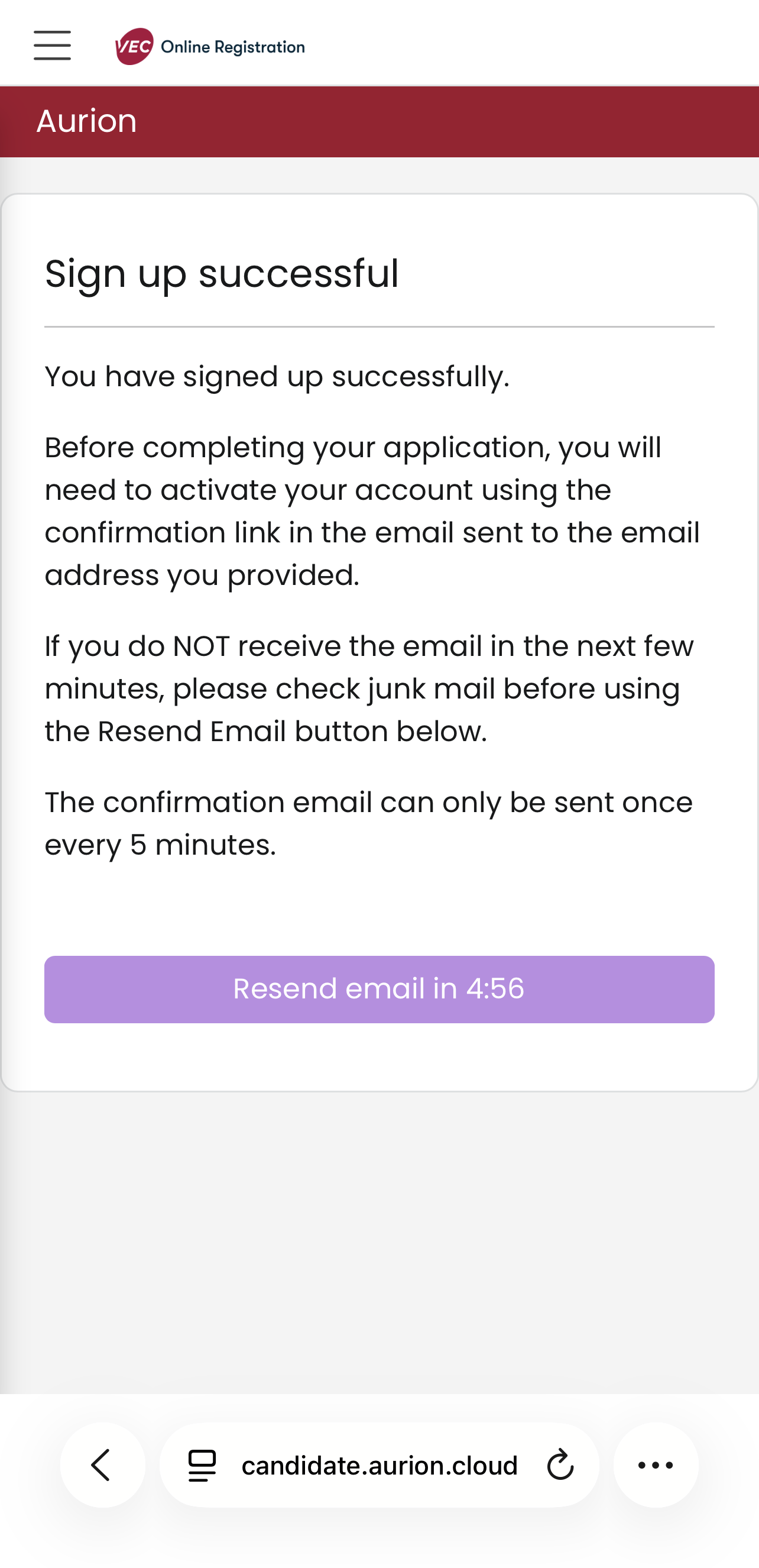
- Check your email for a confirmation link. This may be in your junk or spam folder.
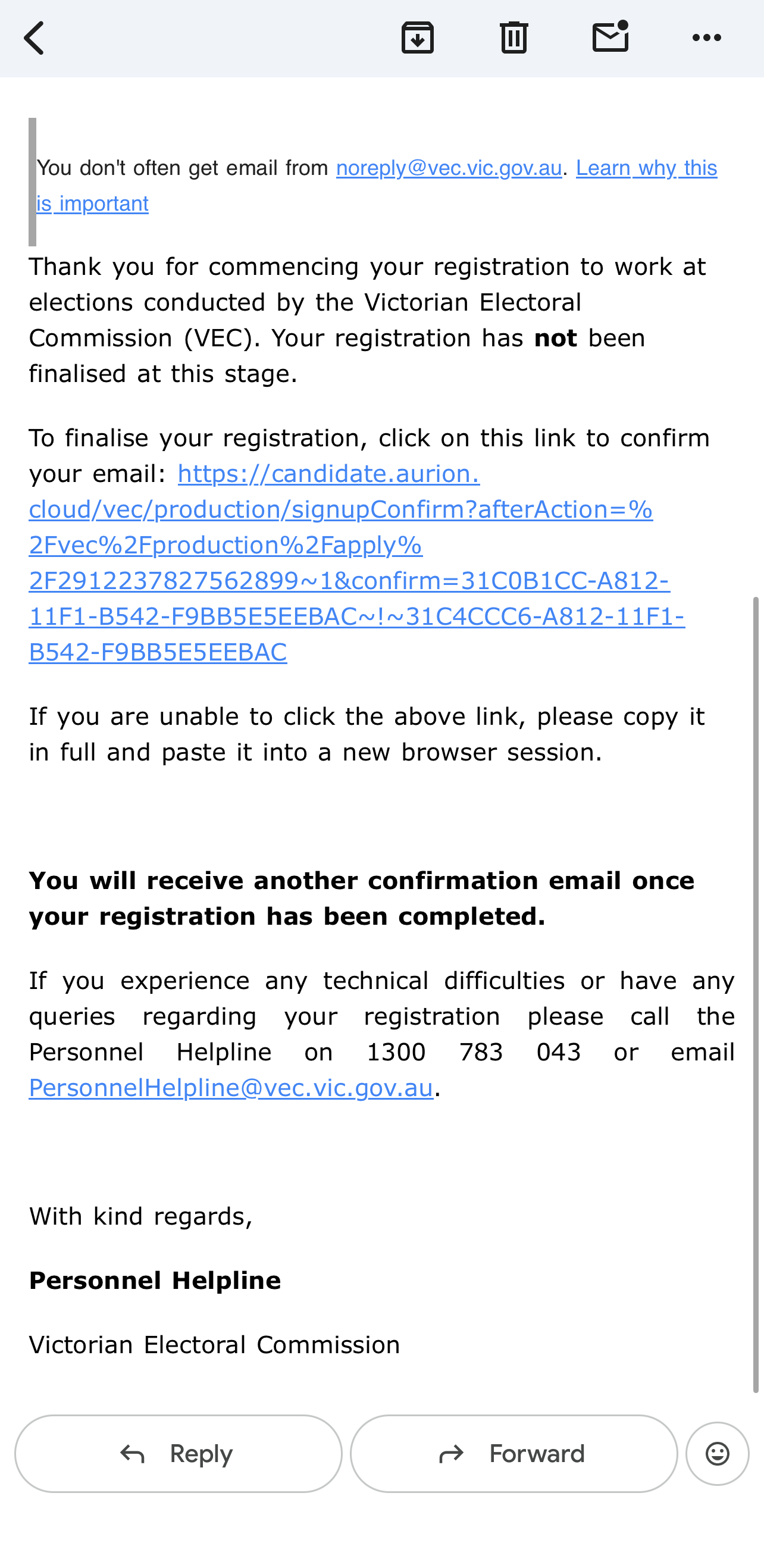
- Check your email for the following confirmation message: Click the link or copy it into your browser to confirm your email address.
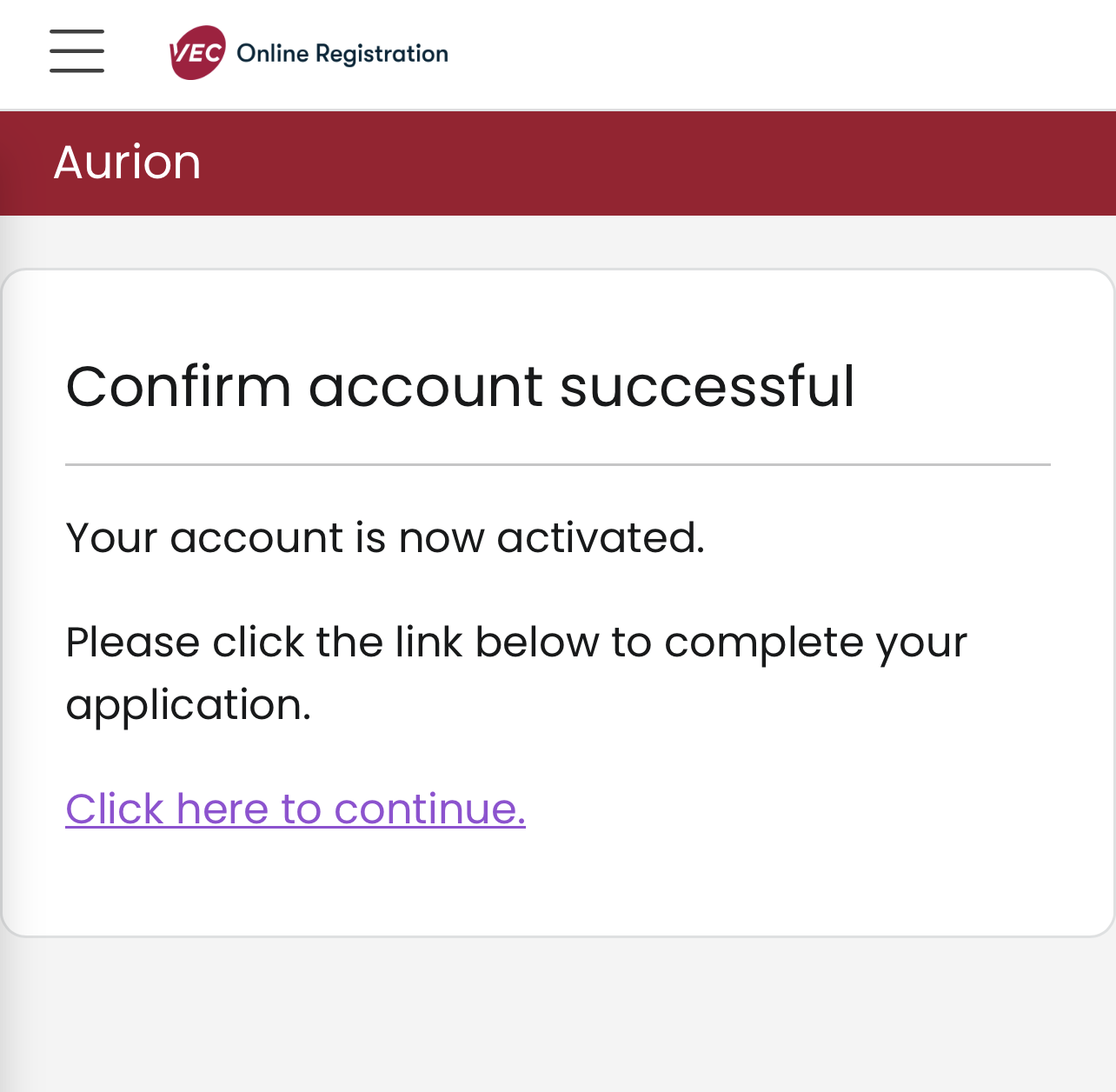
- The following screen will appear: Click on 'Click here to continue'.
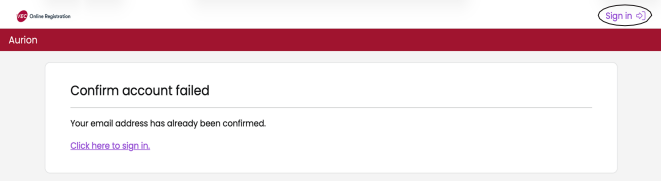
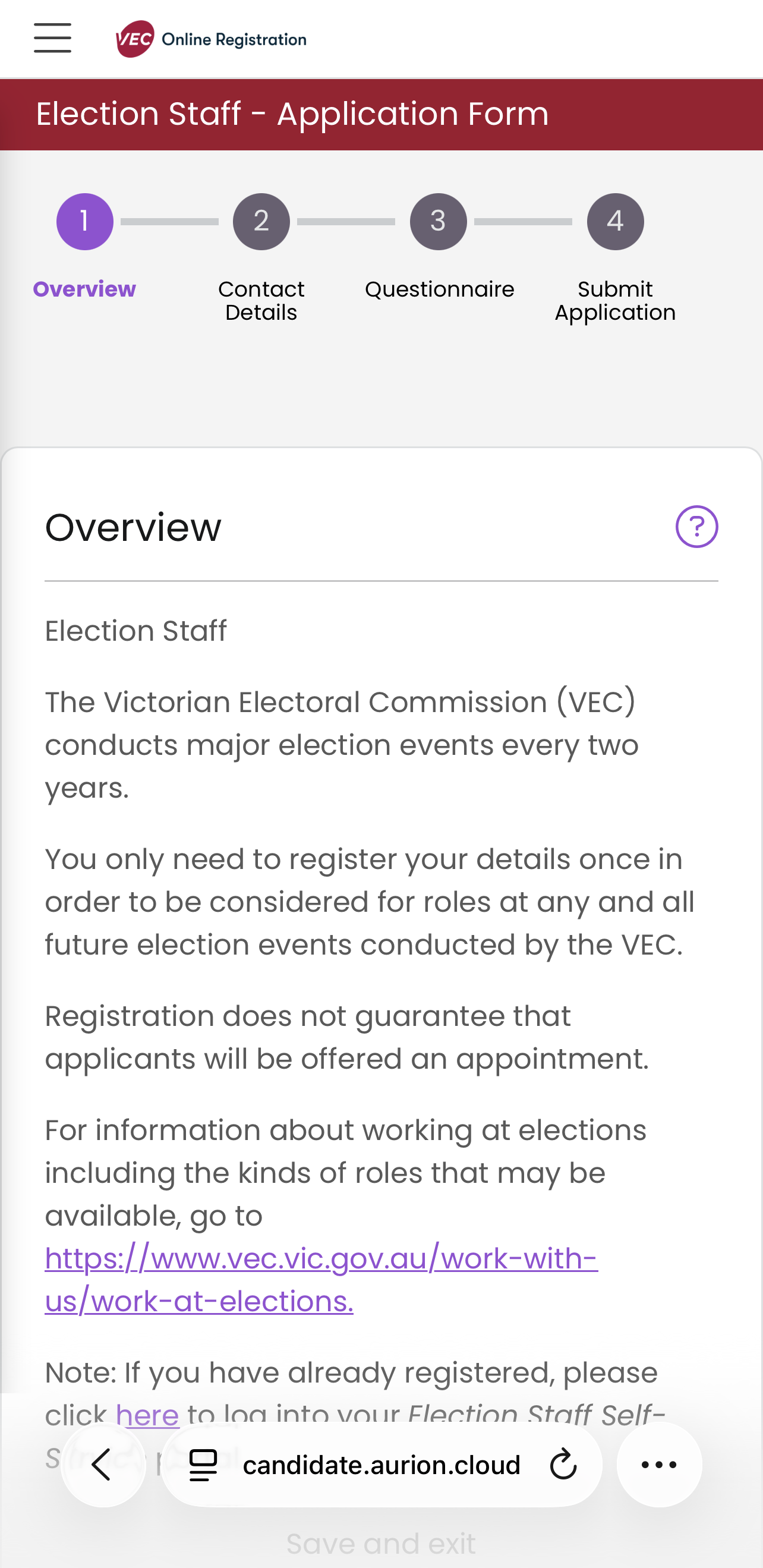
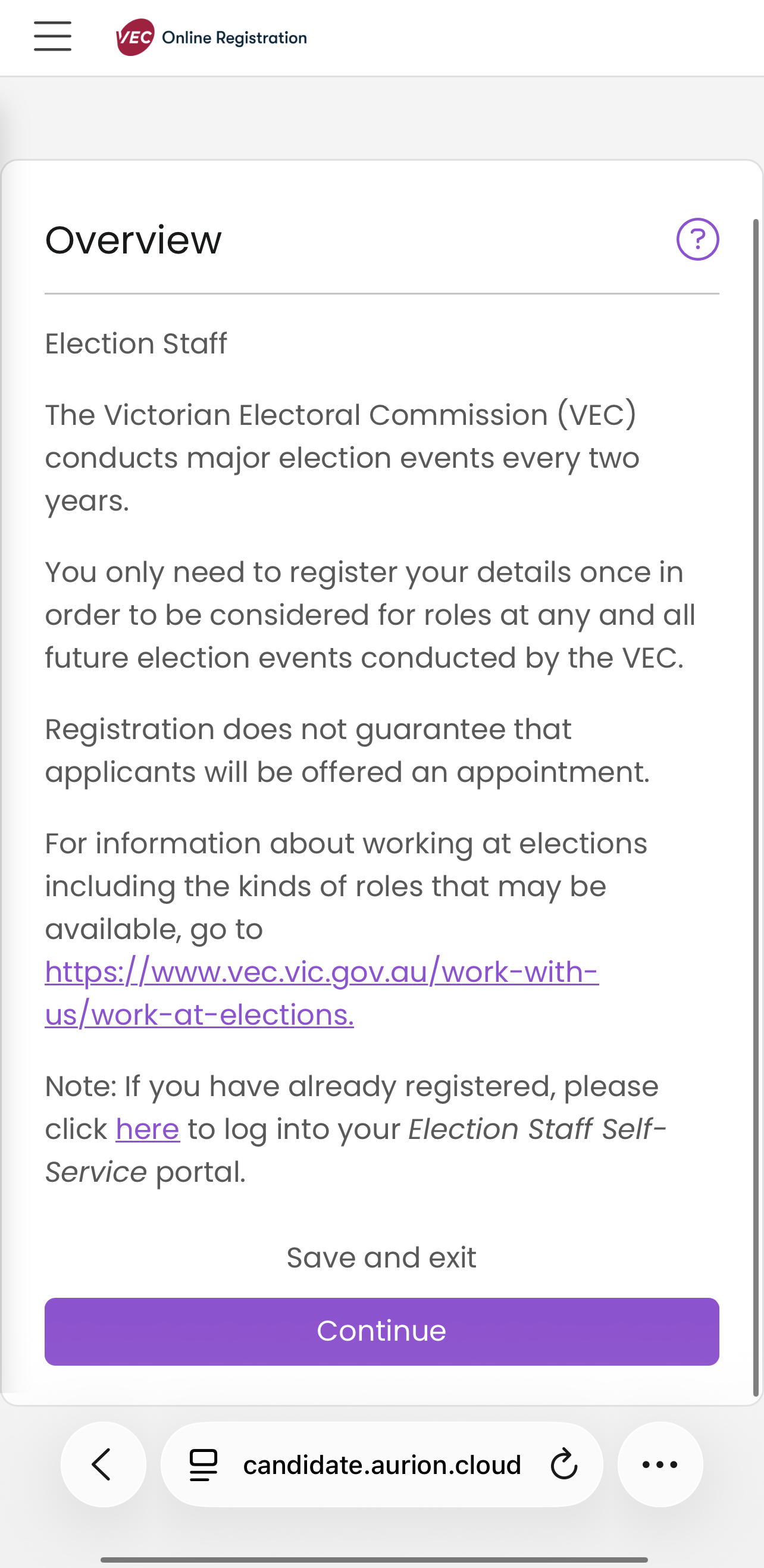
- If a 'Confirm account failed' message appears, click 'Sign in' at the top right of the screen. If you are on a mobile device this will be 3 lines. You will then need to sign in using your email address and password. This will take you to the 'Overview' page. There are 4 sections on the left side of the page.
- Click the 'Continue' button at the bottom of the page. This will take you to the 'Contact Details' tab. Some of your personal information will already be populated.
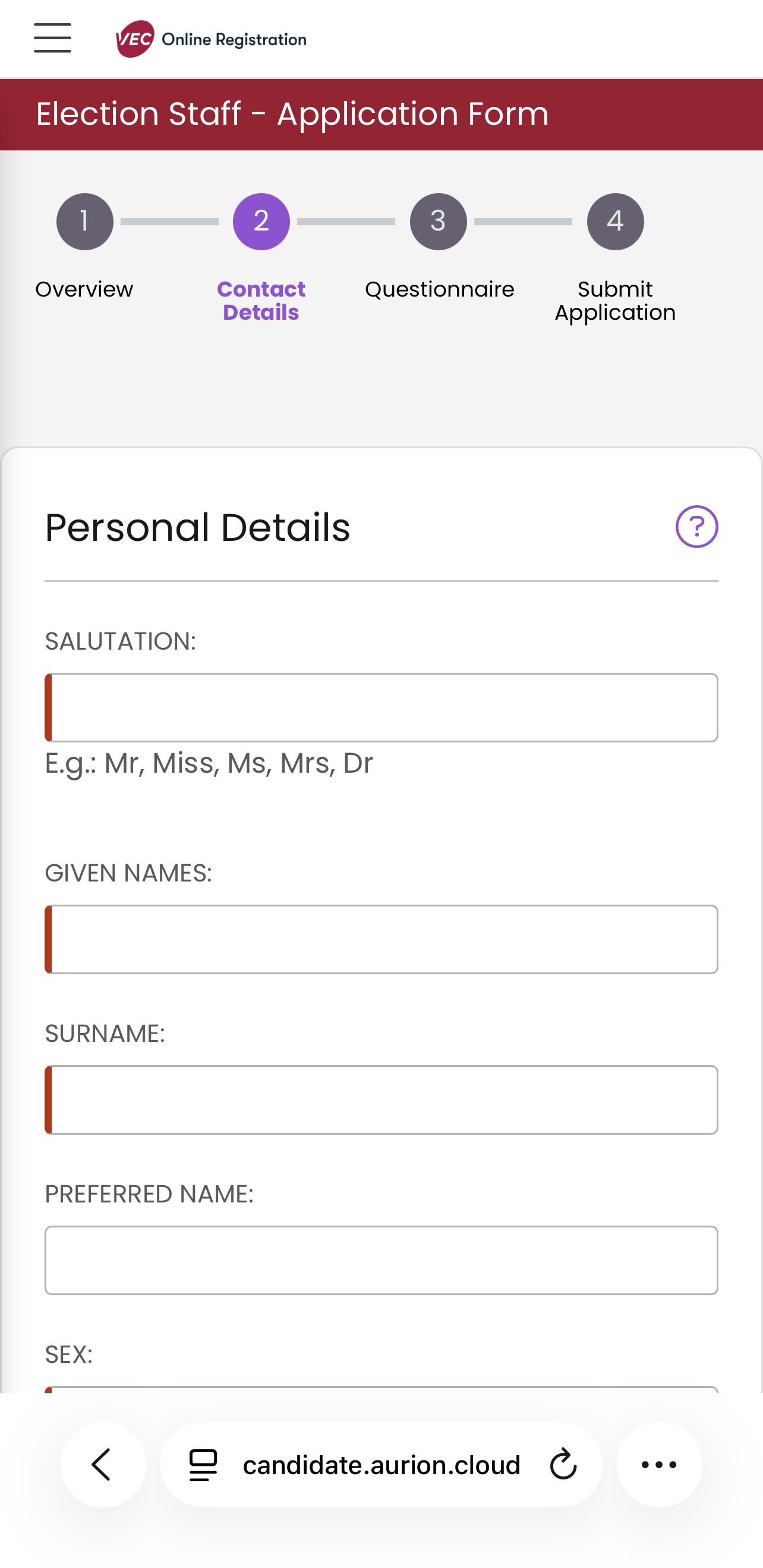
- Complete the empty fields on the 'Contact Details' tab.
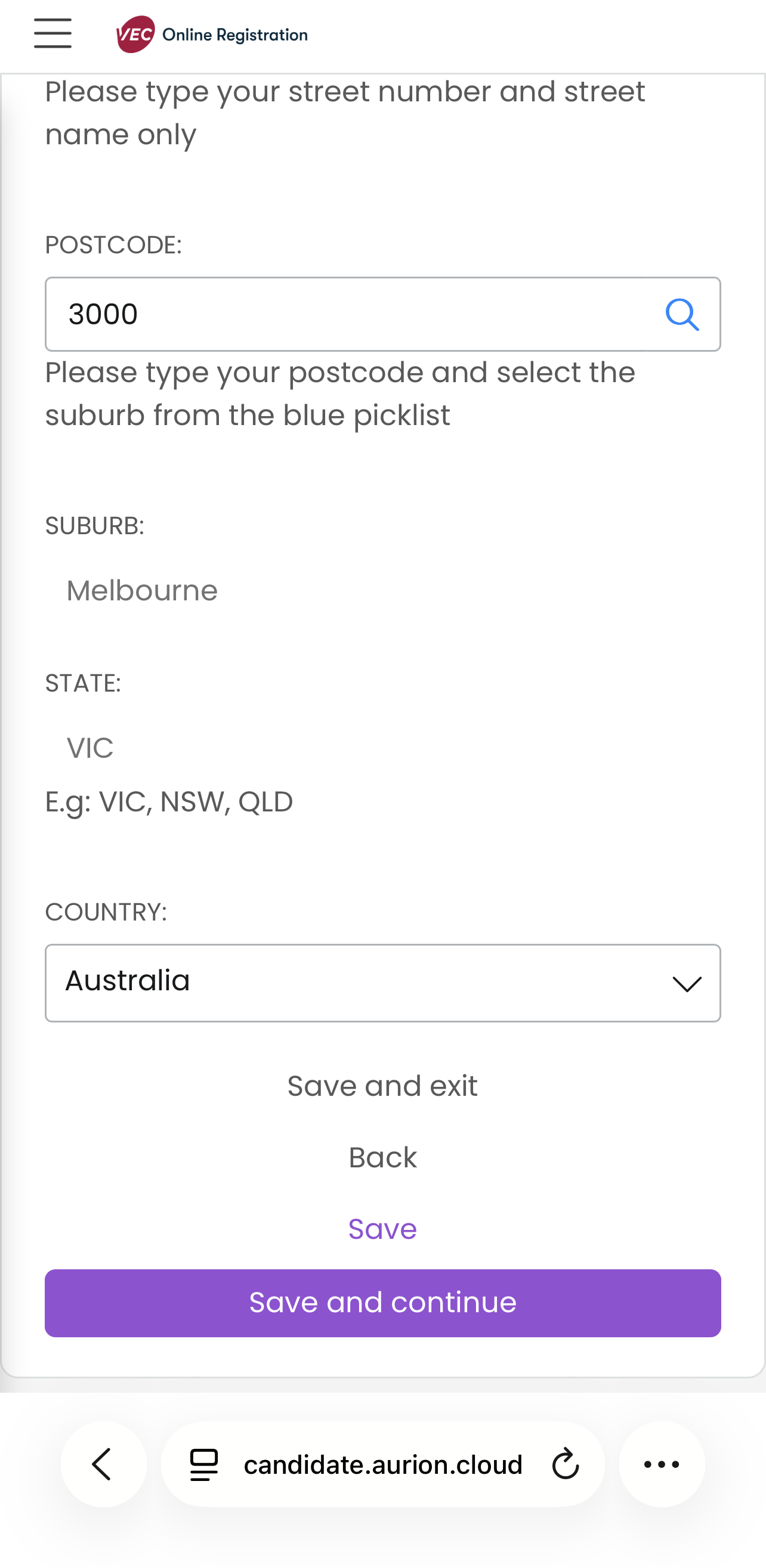
- Click the 'Save and continue' button at the bottom of the page. If you leave a required field blank, an error message will appear at the top of the page. You will then move to the 'Questionnaire' tab.
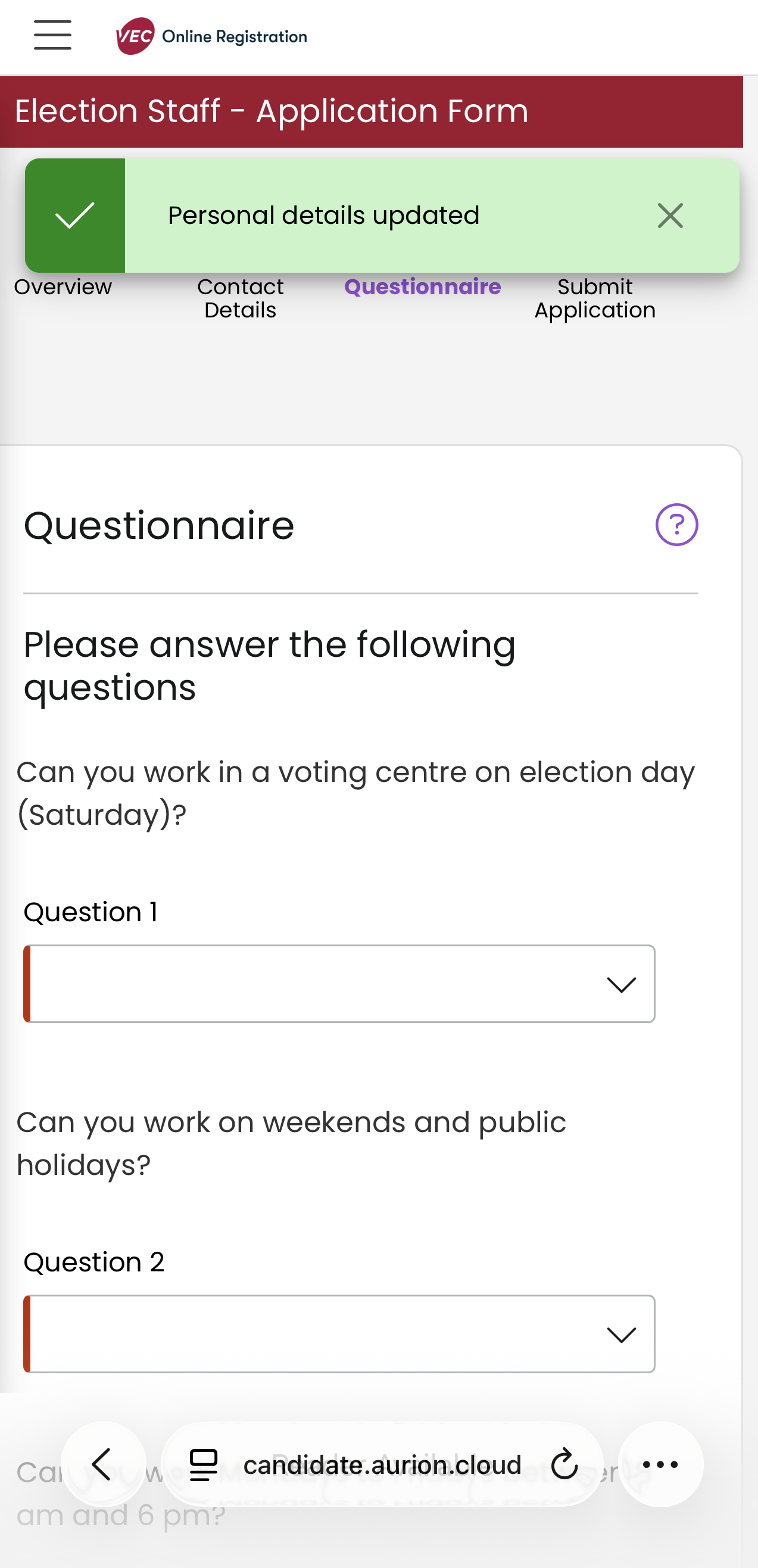
- Answer all questions on the 'Questionnaire' tab. Questions that have a thicker line on the left side of the answer box are mandatory. Answering more questions in the 'Skills & Experience' section will improve your chances of being considered for a role that matches your skills.
- Question 27 is a free-text question with a 700-character limit. If you type more than 700 characters, you will get an error message.
- Click the 'Save and continue' button at the bottom of the page. The next screen is the 'Submit Application' screen.
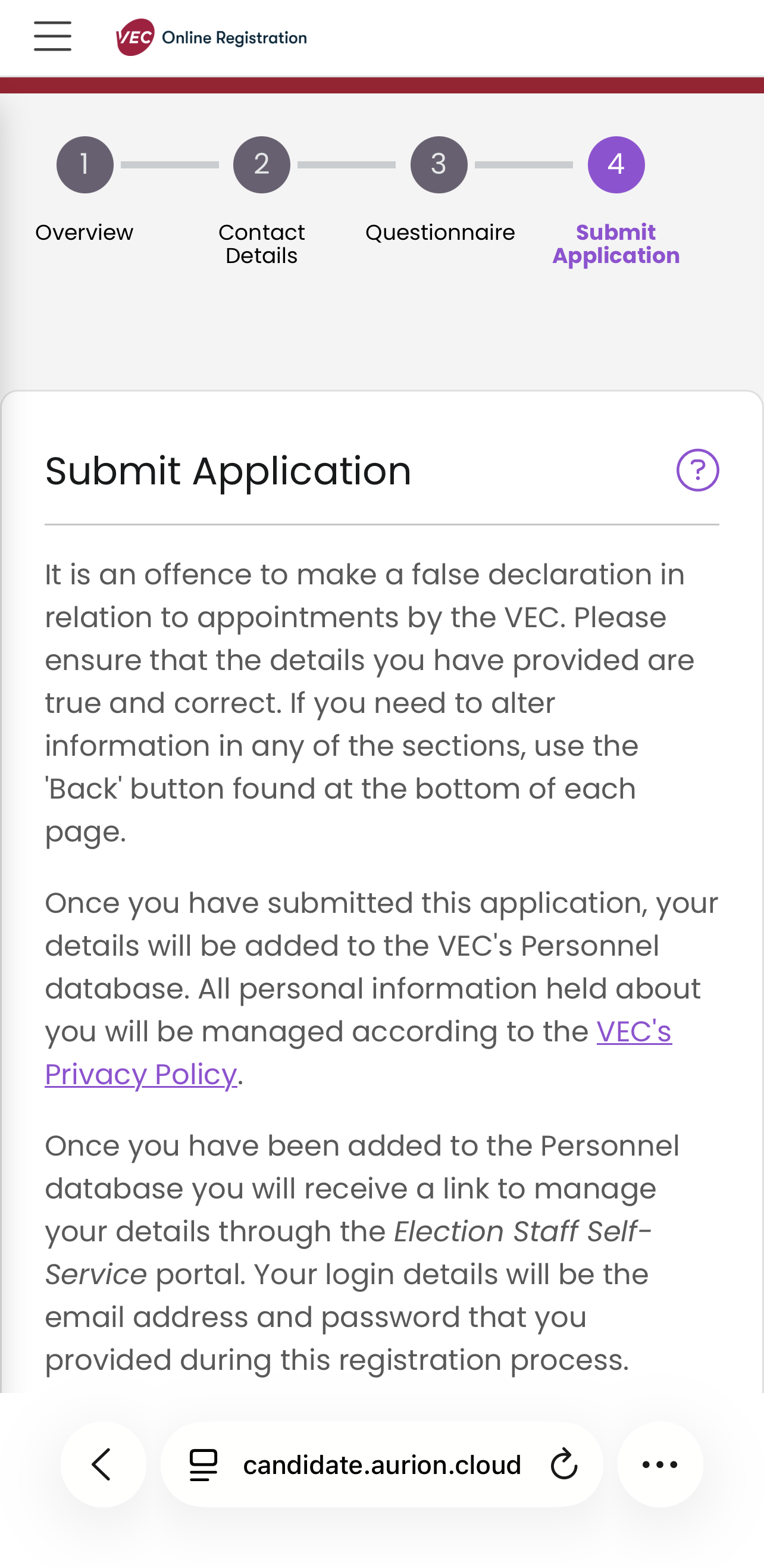
- Click the 'Submit' button to finalise your application.
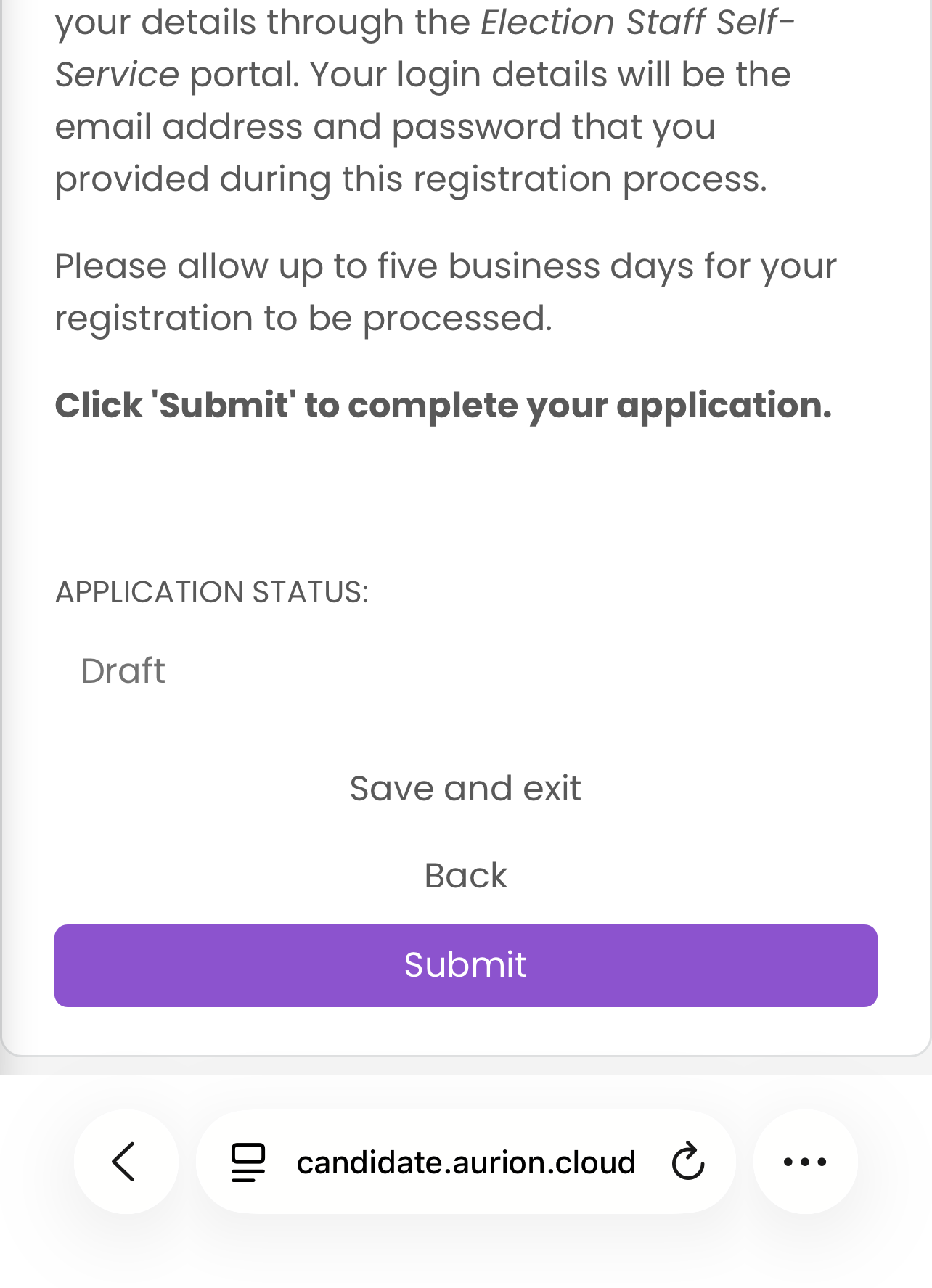
The next screen is the 'Application Summary' screen.
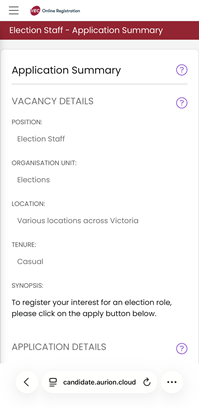
The status of your application should now be 'Submitted'.
You will receive an email confirmation with the subject line 'Your application has been received'.
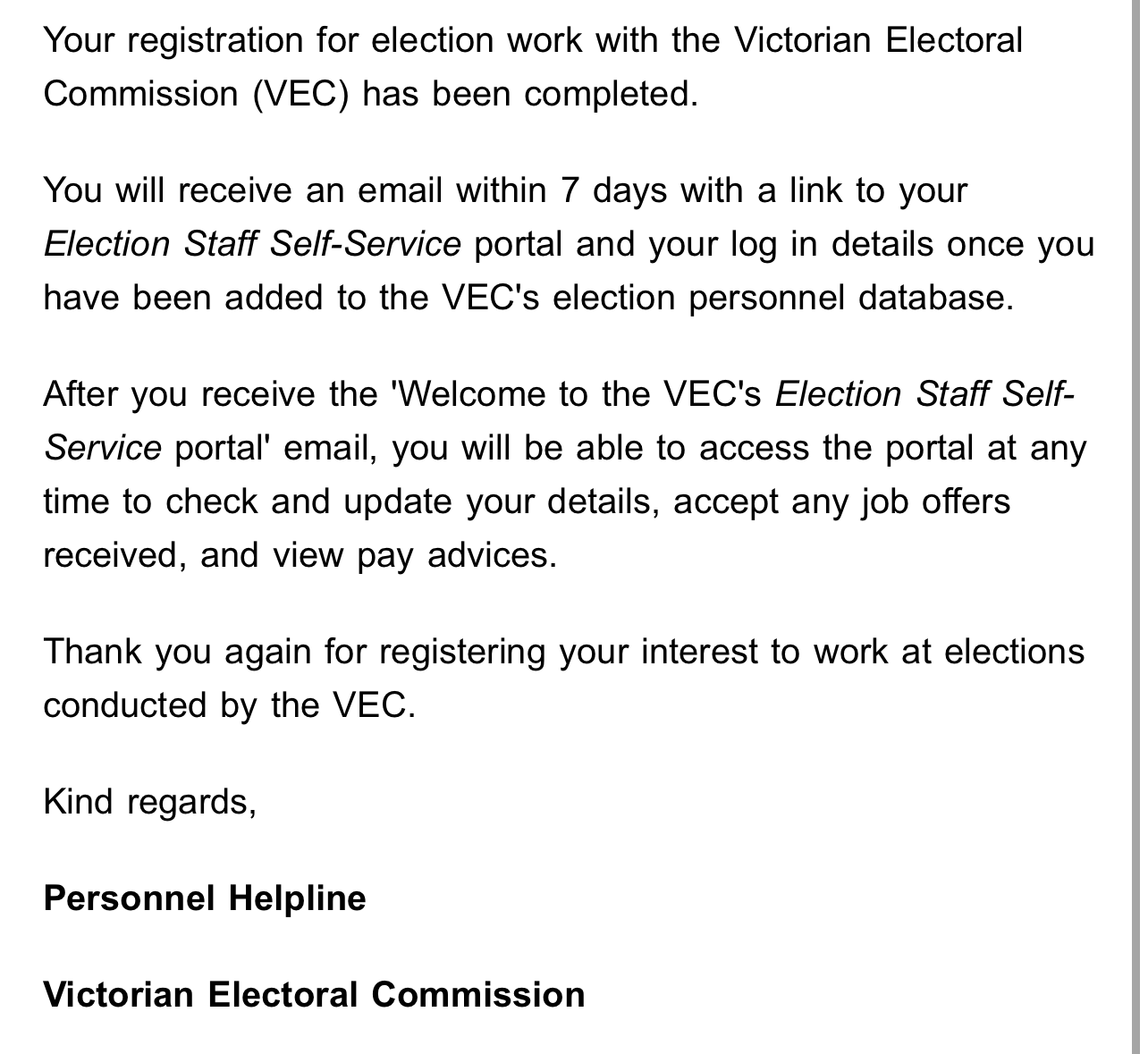
In 3 to 5 business days, you will receive a final email containing a link to the VEC self-service portal. This portal is where you can:
- update your details
- accept job offers
- complete timesheets.
You are now fully registered with us and we can contact you.
This is now your VEC profile for all future casual election roles. You will not need to register for any future election events to be considered for employment.
If you need help, please contact us by:
- Email: personnelhelpline@vec.vic.gov.au
- Phone: 1300 783 043 (9 am to 5 pm, Monday to Friday)